
For: Page editors.
Show one X post on your page. Readers see who wrote it, its text, its photos or video, and its date. They see the source next to your notes.
Live example
On a launch page, put the public post under “What changed”. Place your team’s checklist below it. Readers can check the post against your plan.
Before you start
-
You can edit this page.
-
You have a public X post URL.
-
You do not need an X API key.
X must still let people see the post. The app cannot bring back a deleted or private post. Keep the key facts in the page text too.
Add it to a page
-
Open the page’s insert menu. Choose Embedded Post.
-
Enter a public X post URL in Item to share.
-
Choose your settings and check the preview.
-
Choose Insert.
-
On a regular page, publish or update it. Others can then see what you added.
To change it later, open its editor.
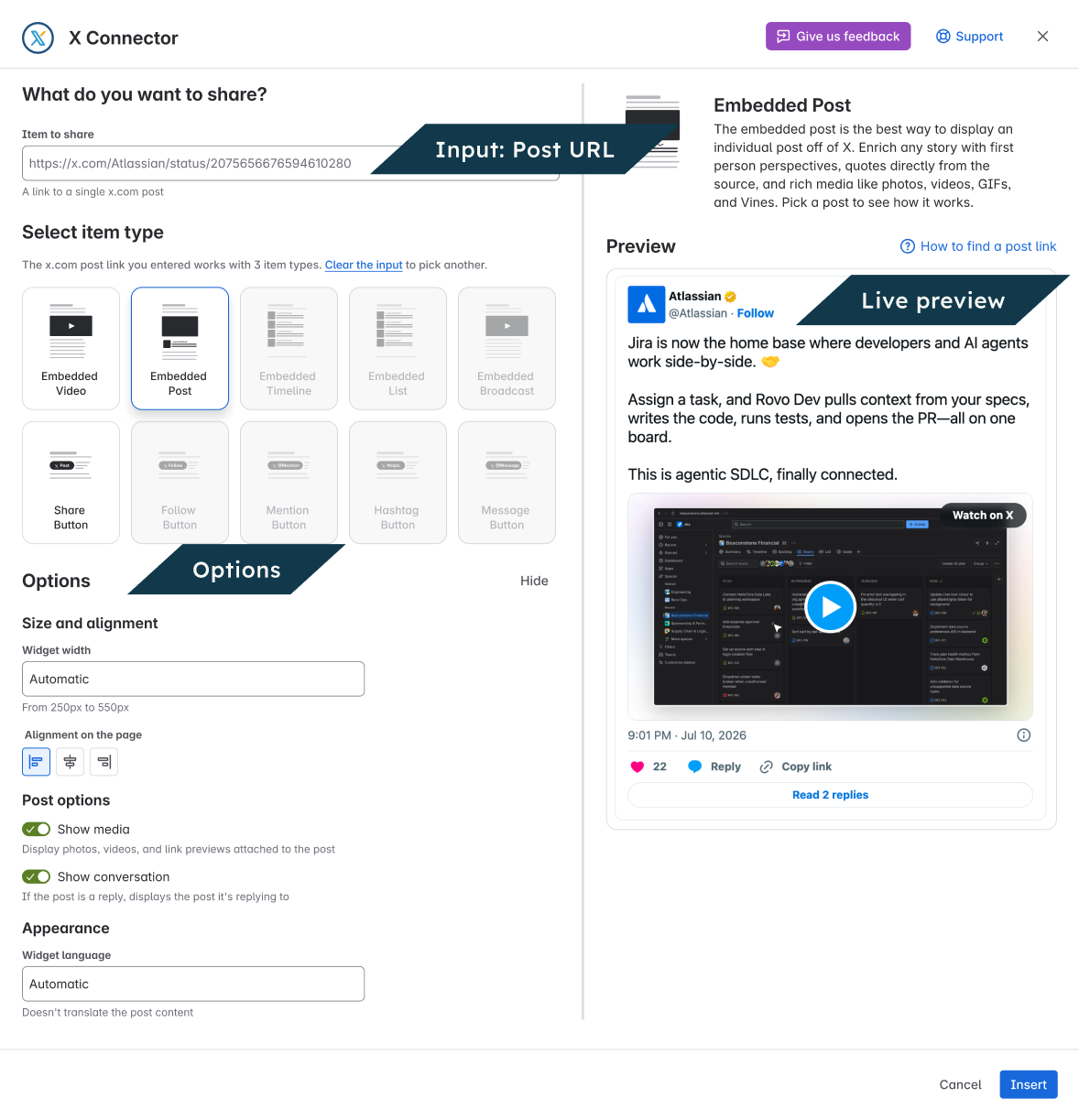
Settings
|
Setting |
What it does |
|---|---|
|
Widget width |
Automatic, or 250–550 px. |
|
Alignment on the page |
Left, center or right. |
|
Show conversation |
Show surrounding conversation when X makes it available. |
|
Show media |
Show attached images, video and supported cards. |
|
Widget language |
Change X labels and dates; post text is not translated. |
Check the result
View the page as a reader. Check that it shows the content you chose. If it will not load, open the source on X. For next steps, use Fix a problem.
Related guides
Formerly titled “Single Tweets”, “Embed a post, video or broadcast”.