For: Page editors.
Put an X post, video or button beside your page text. Your admin must install the app first. You need access to edit the page. Guests can add X content too, if their space permissions let them edit. Use the insert menu, or paste a X URL the app supports onto the page.
Insert from the menu
-
Open a live page you can edit, or choose Edit on a regular page.
-
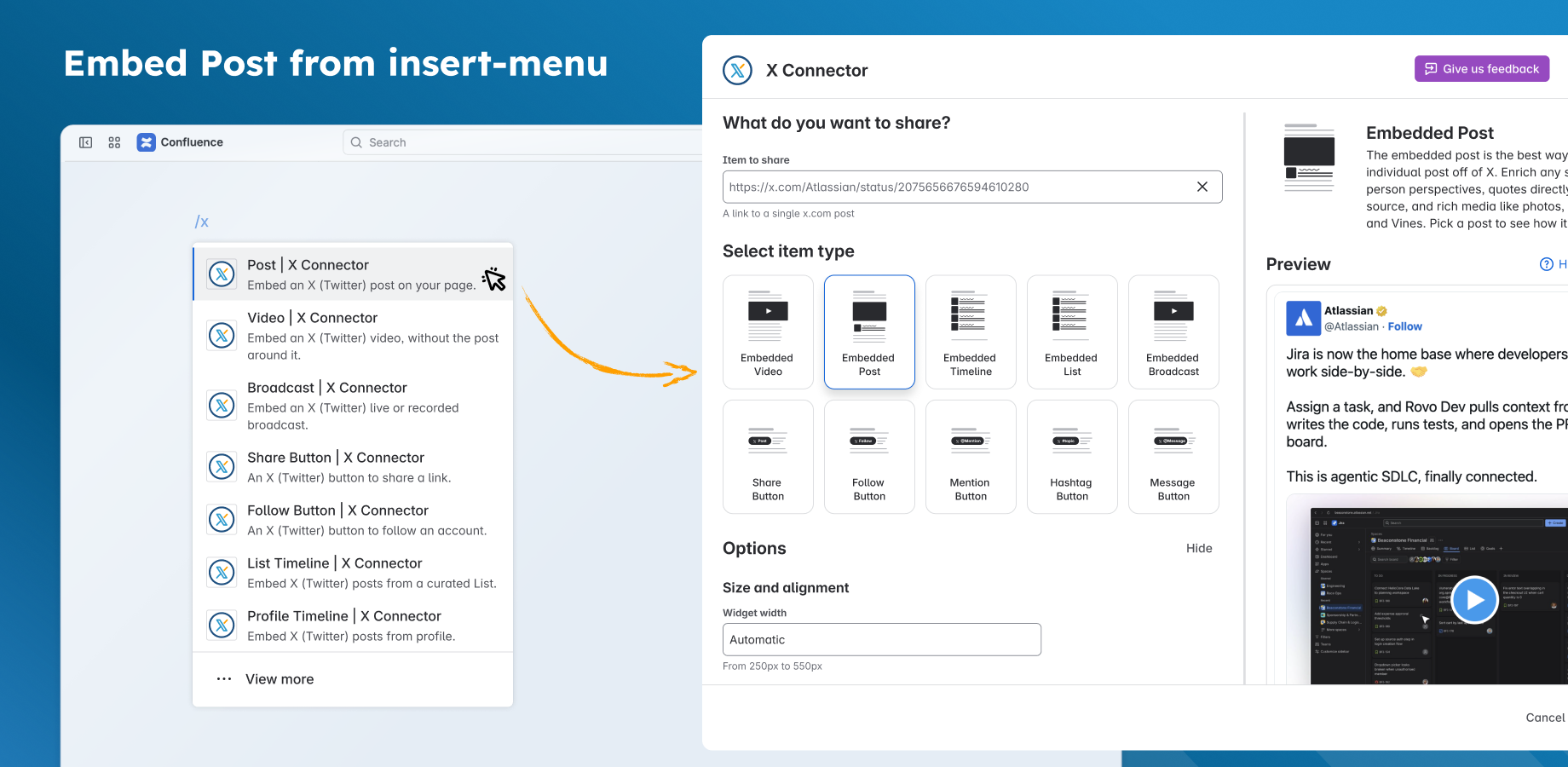
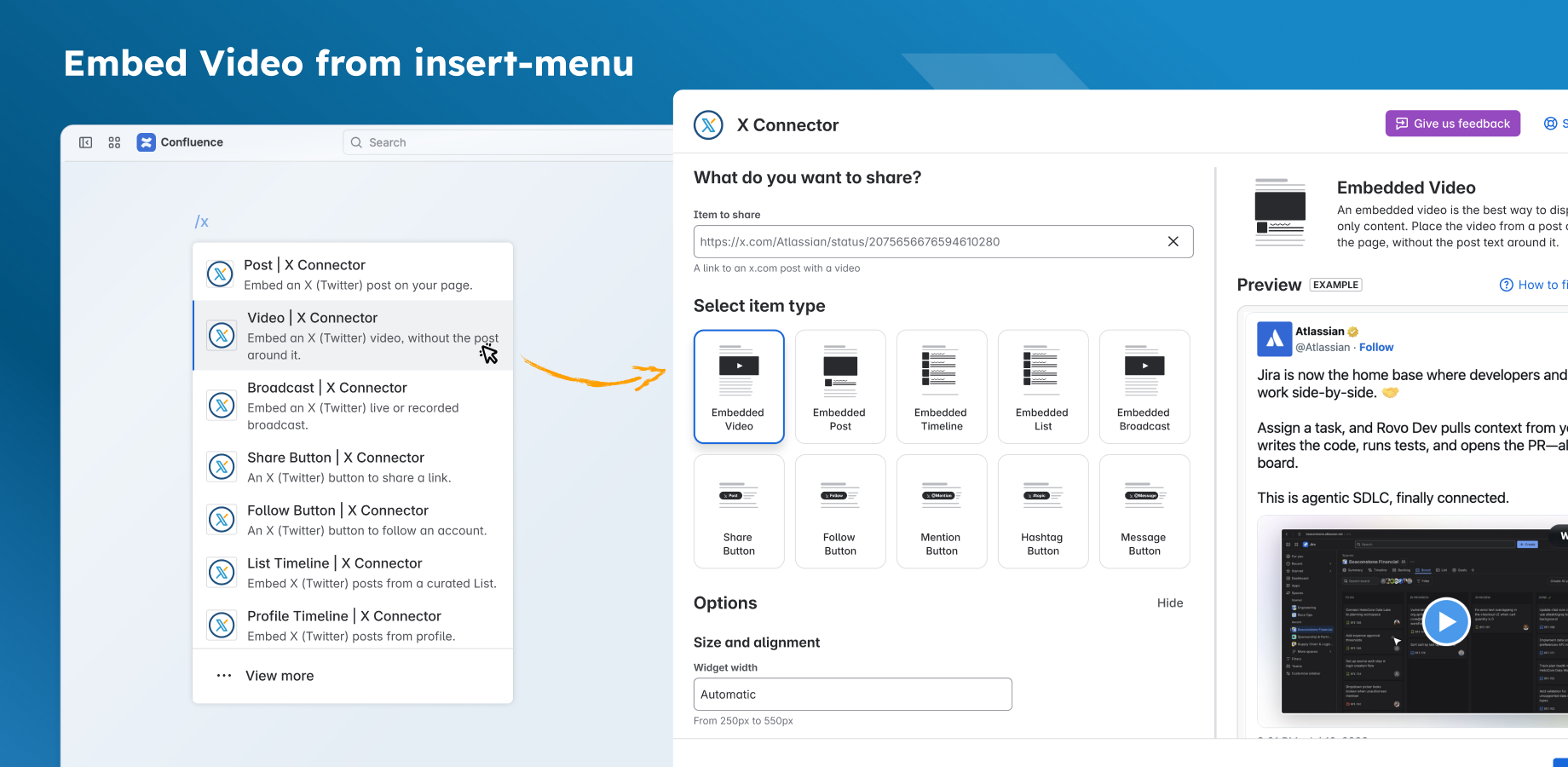
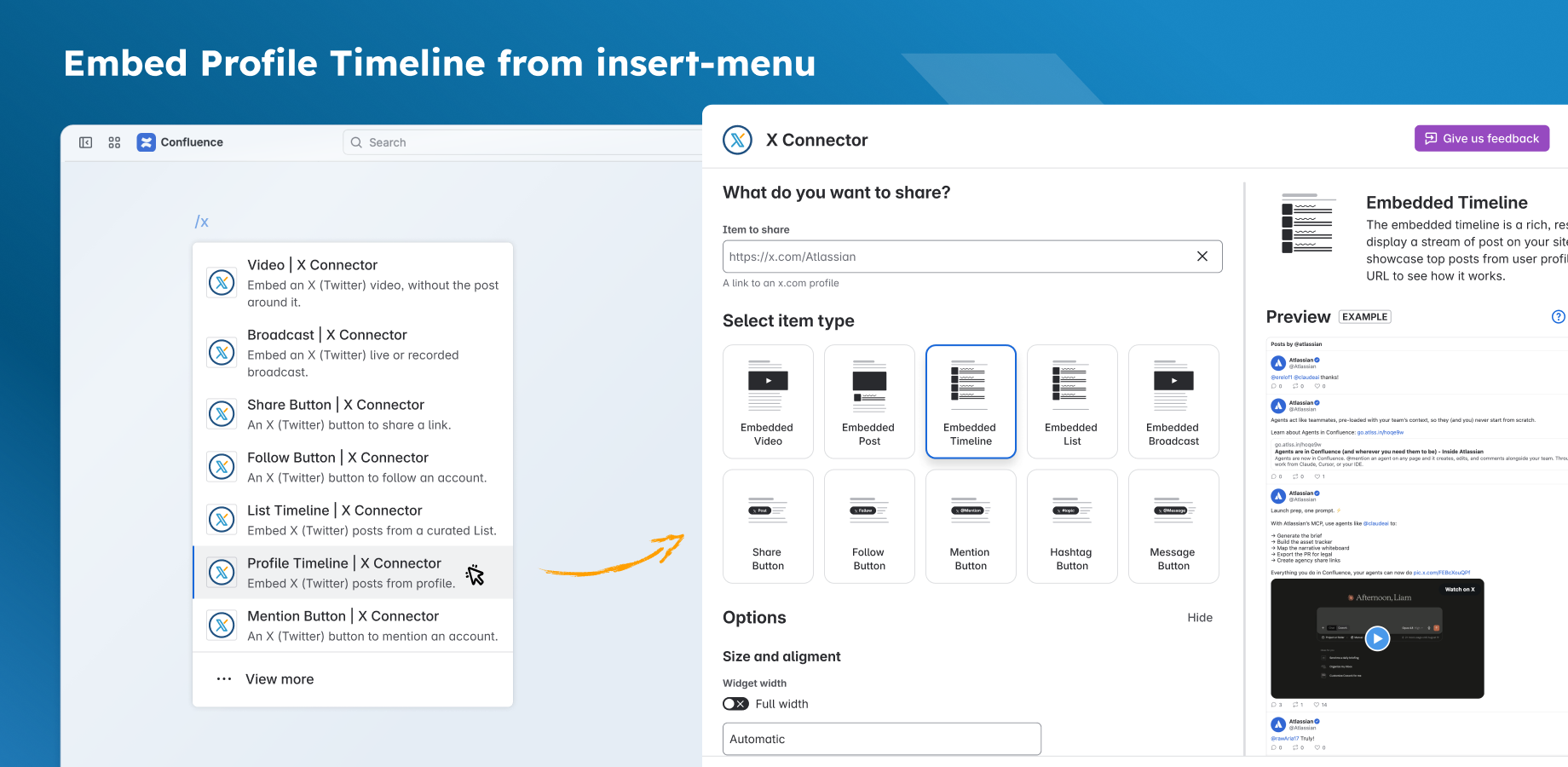
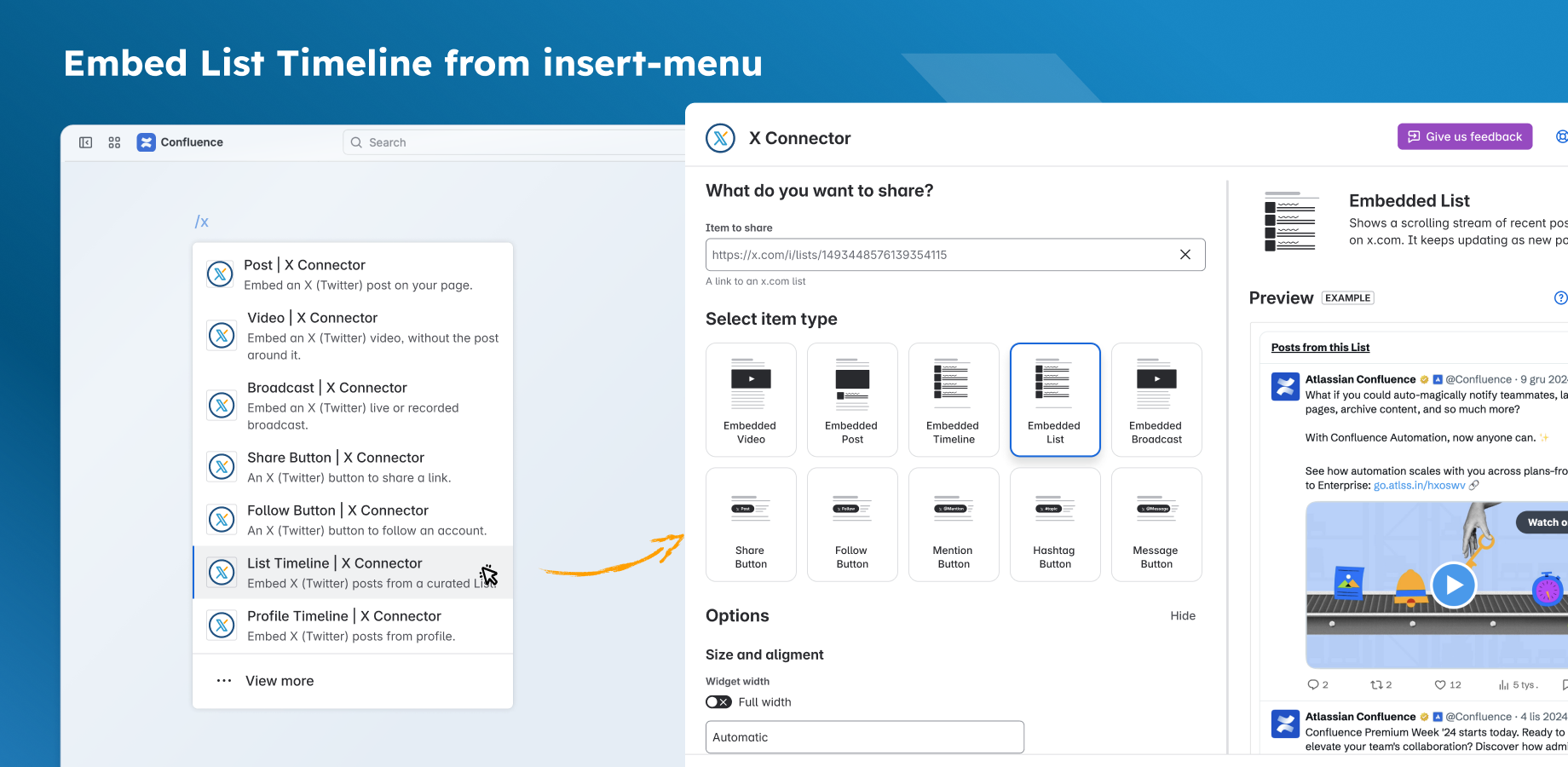
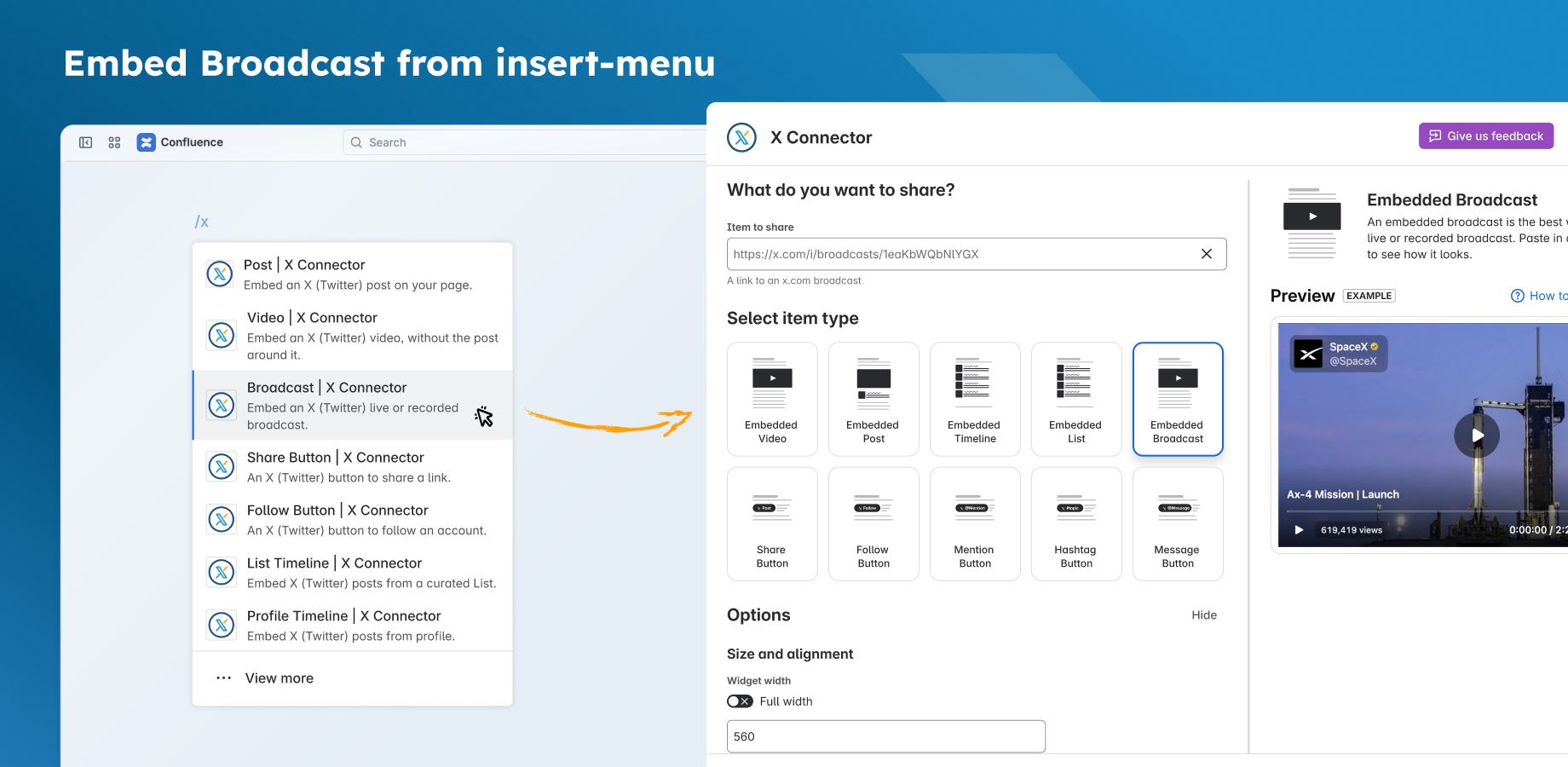
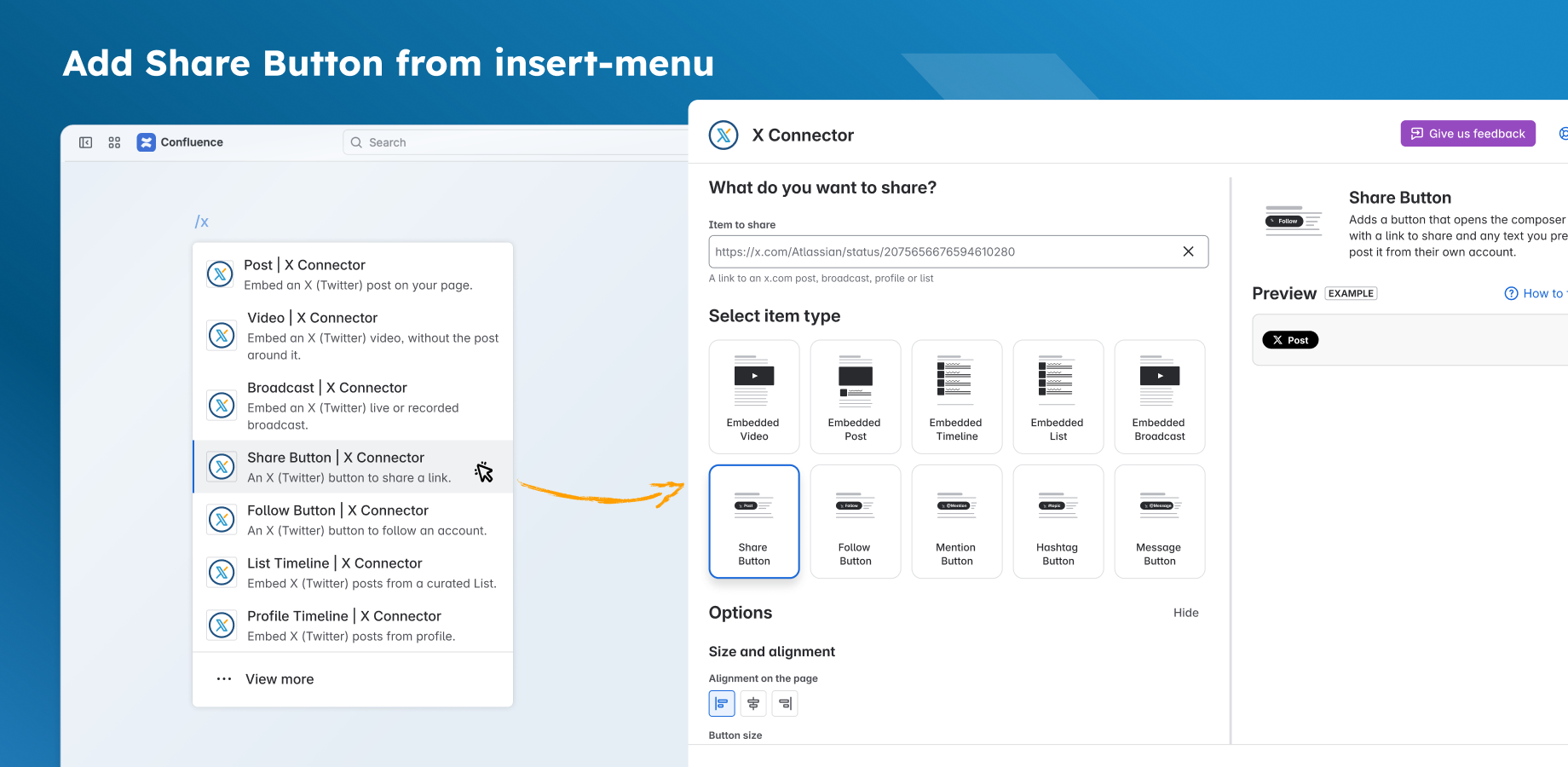
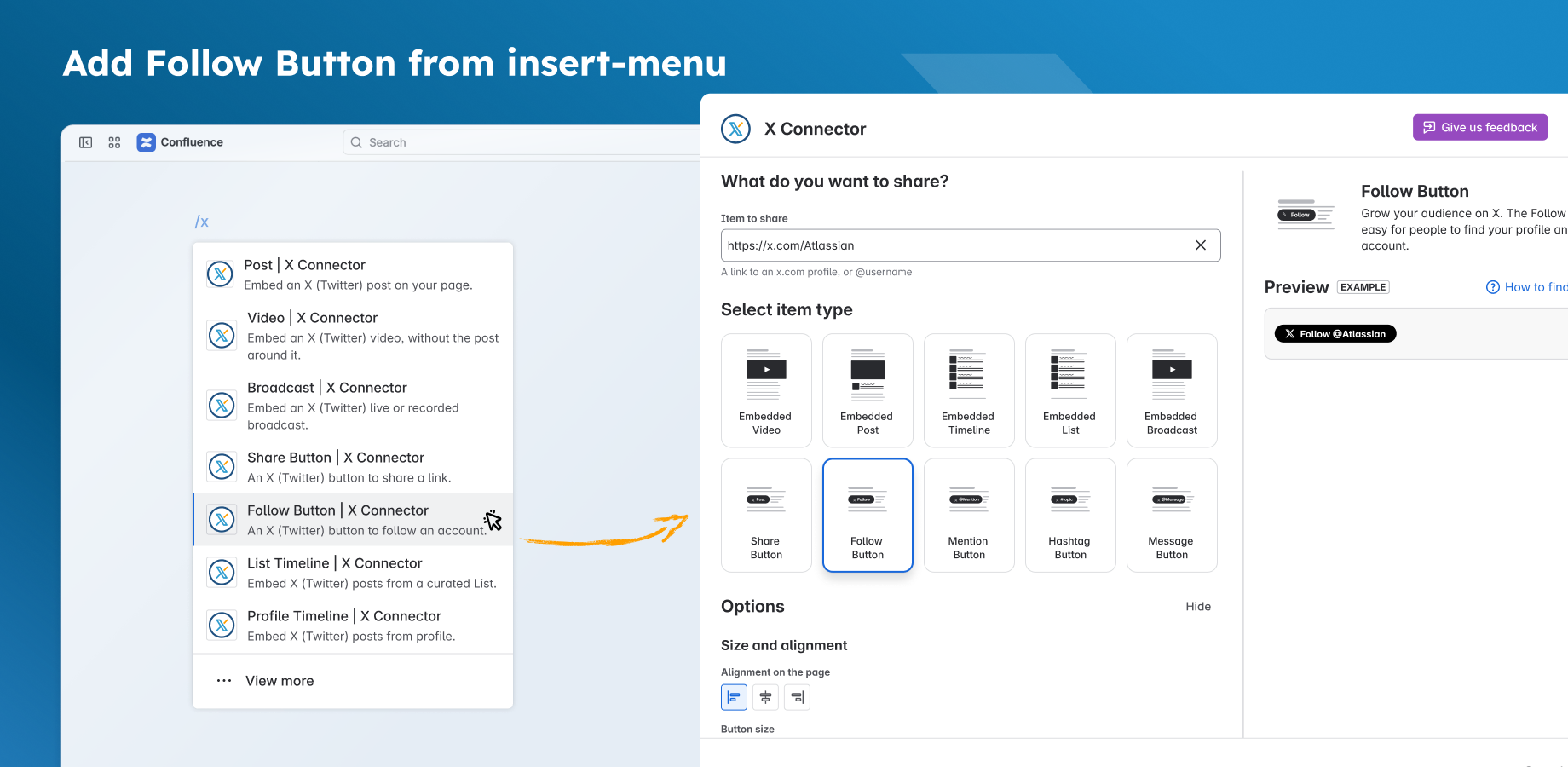
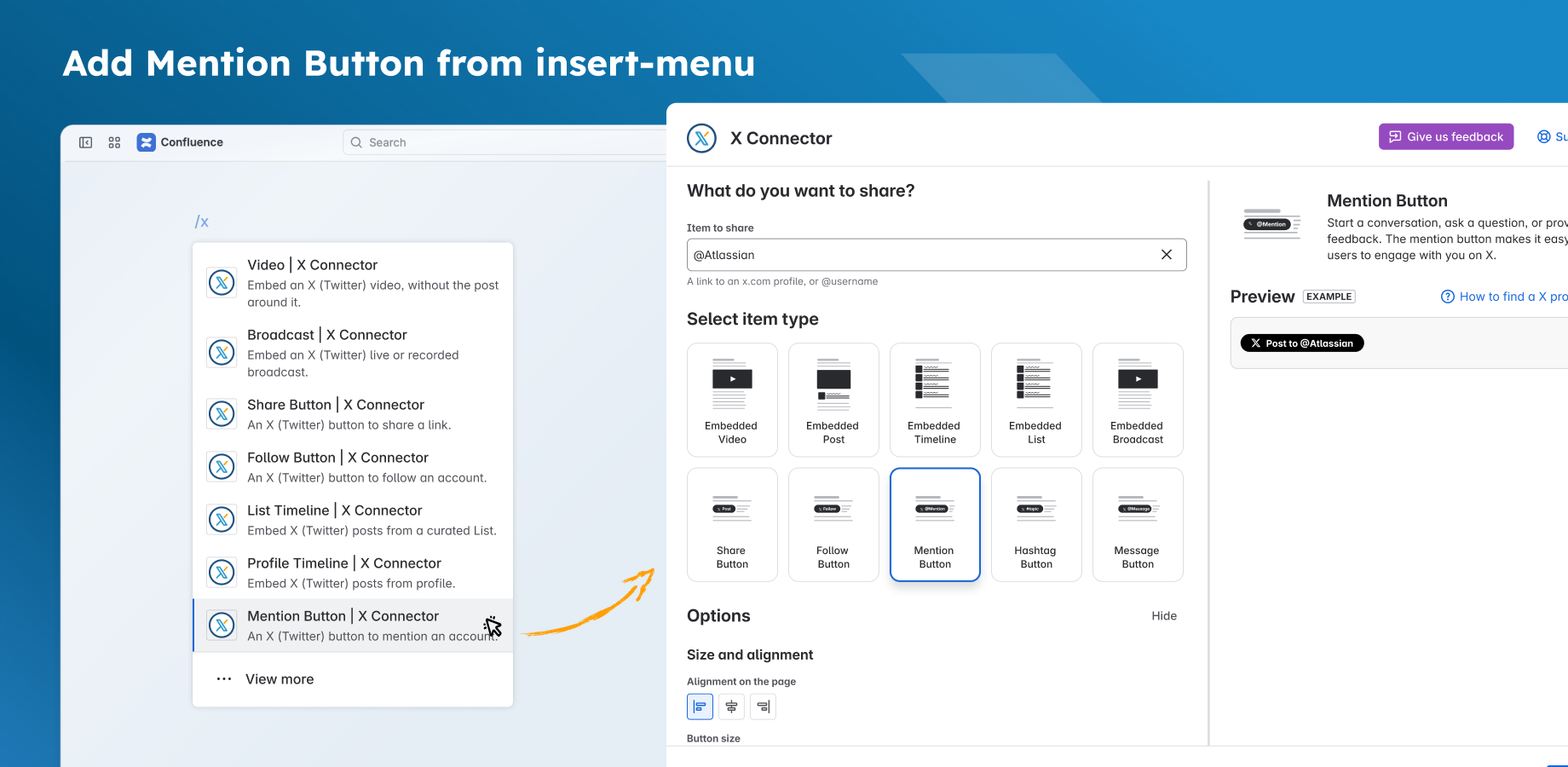
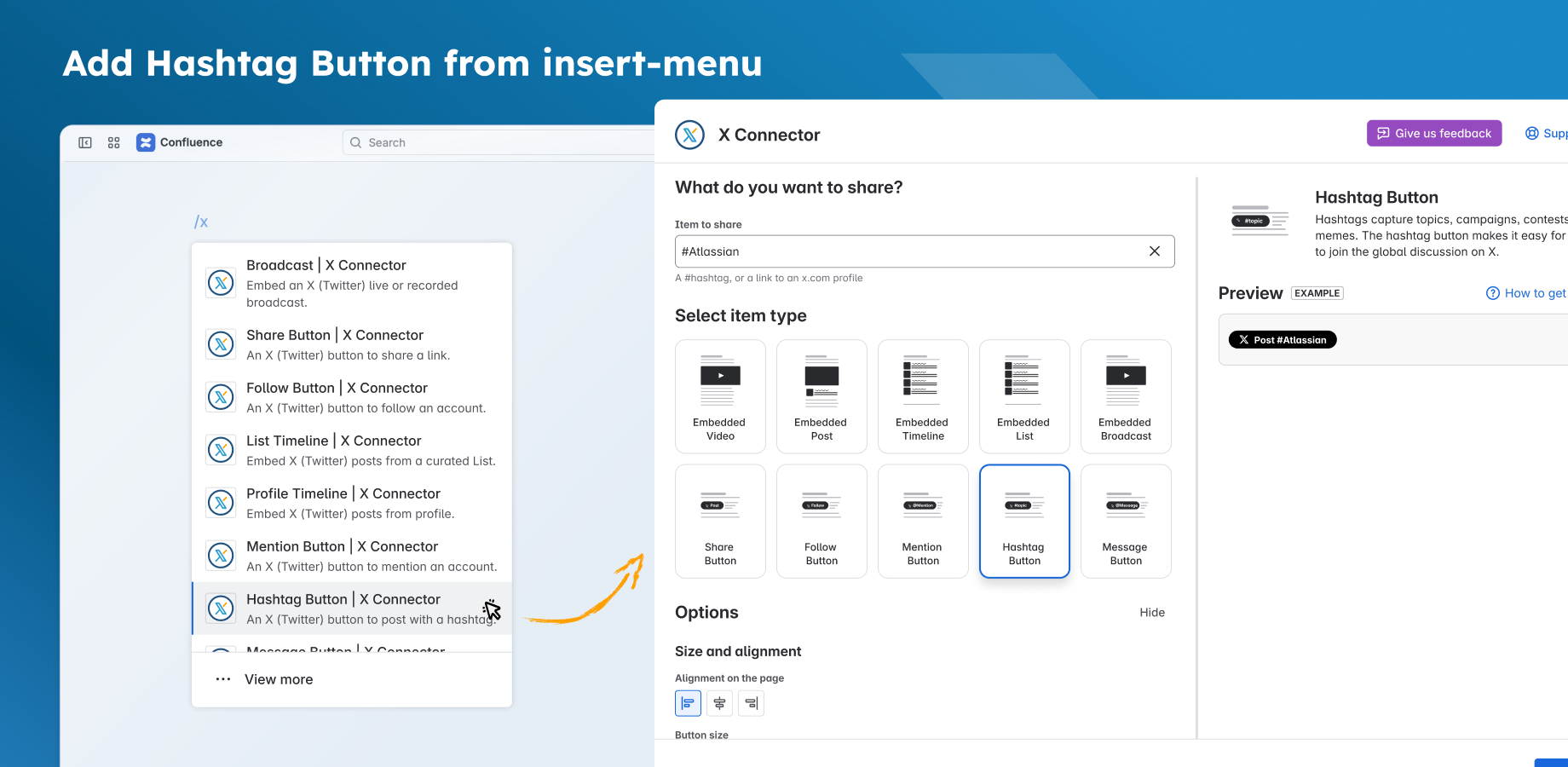
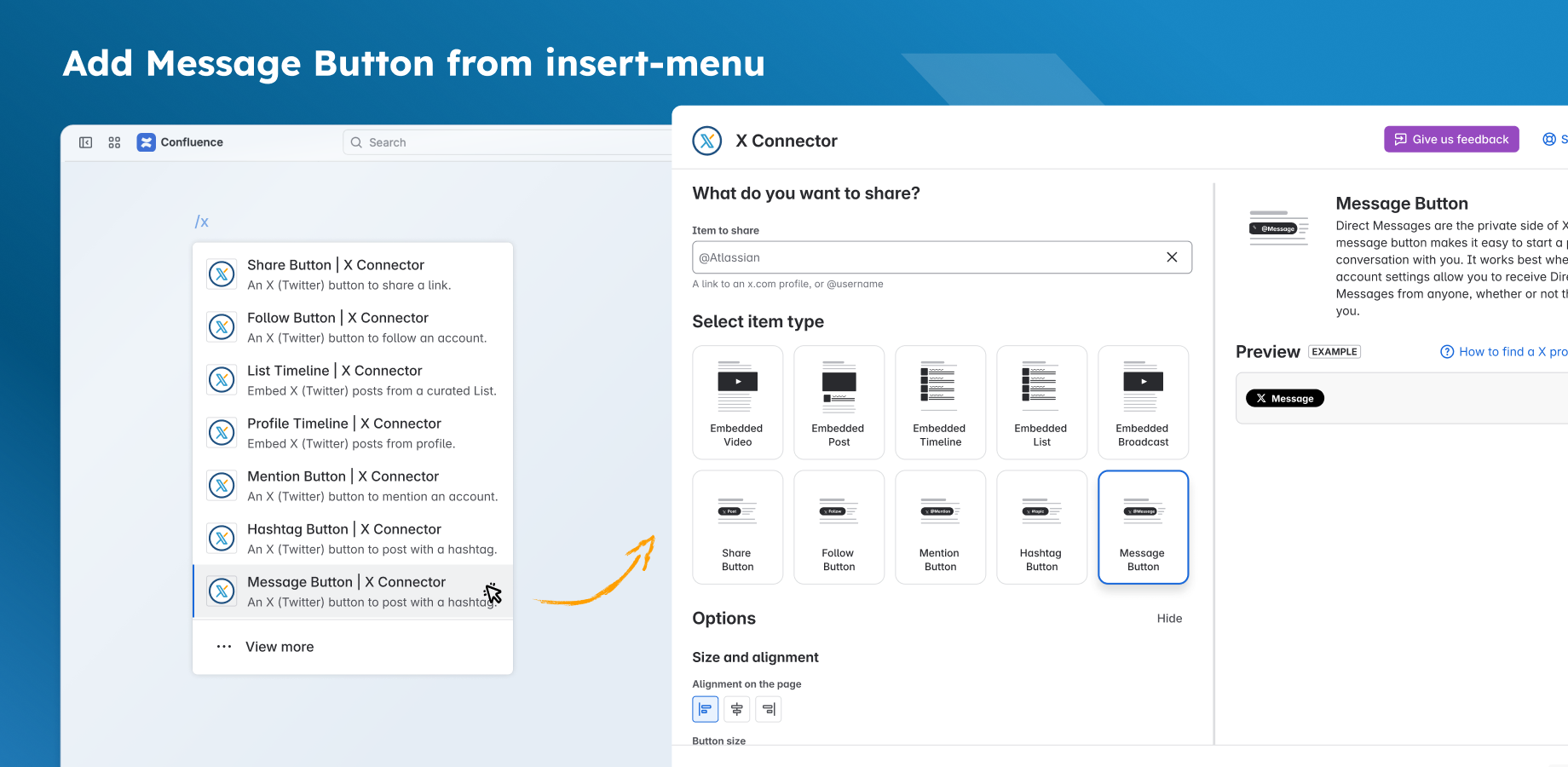
Open the insert menu. Search for the type, or for X Connector for Confluence.
-
Choose one of the ten entries below. Enter your source in Item to share.
-
Choose your settings and check the preview.
-
Choose Insert.
-
Publish or update a regular page. Others can then see what you added.
The preview updates as you change the source or settings. You do not need to press a preview button.
|
Insert-menu entry |
Item to share |
|---|---|
|
Embedded Post |
Public X post URL. |
|
Embedded Video |
X post URL that contains a video. |
|
Embedded Timeline |
Profile URL or @username. |
|
Embedded List |
Public X List URL. |
|
Embedded Broadcast |
X broadcast URL. |
|
Share Button |
Supported X post, profile, List or broadcast URL. |
|
Follow Button |
Profile URL or @username. |
|
Mention Button |
Profile URL or @username. |
|
Hashtag Button |
#hashtag, or a profile/username from which to create one. |
|
Message Button |
Profile URL, @username or numeric X user ID. |
The X Connector for Confluence entry opens the same editor. If more than one type fits your link, choose the one you need. A greyed-out type does not fit your source.
Paste a URL onto the page
|
Pasted URL |
Starting type |
|---|---|
|
X post, including a post with video |
Embedded Post |
|
X profile |
Follow Button |
|
X List |
Embedded List |
|
X broadcast |
Embedded Broadcast |
The editor opens. Check the result before you save.
-
To show a profile’s posts, change Follow Button to Embedded Timeline.
-
To focus on a post’s video, choose Embedded Video.
-
Paste a full URL onto the page. Enter @usernames, hashtags and numeric IDs in Item to share instead.
After you paste a link, check the page even if you cancel the editor. Confluence may have added the item. Cancel may leave it on the page.
Check the result
View the page as a reader. Check that it shows the content you chose. For a button, check that it opens the right action on X. If it fails, follow Fix a problem.
Change it later
While you edit the page, point to an item and choose Edit. You can choose a new type that fits your source. Keep using the same macro. Follow Edit, switch type and align X content.