For: Page editors.
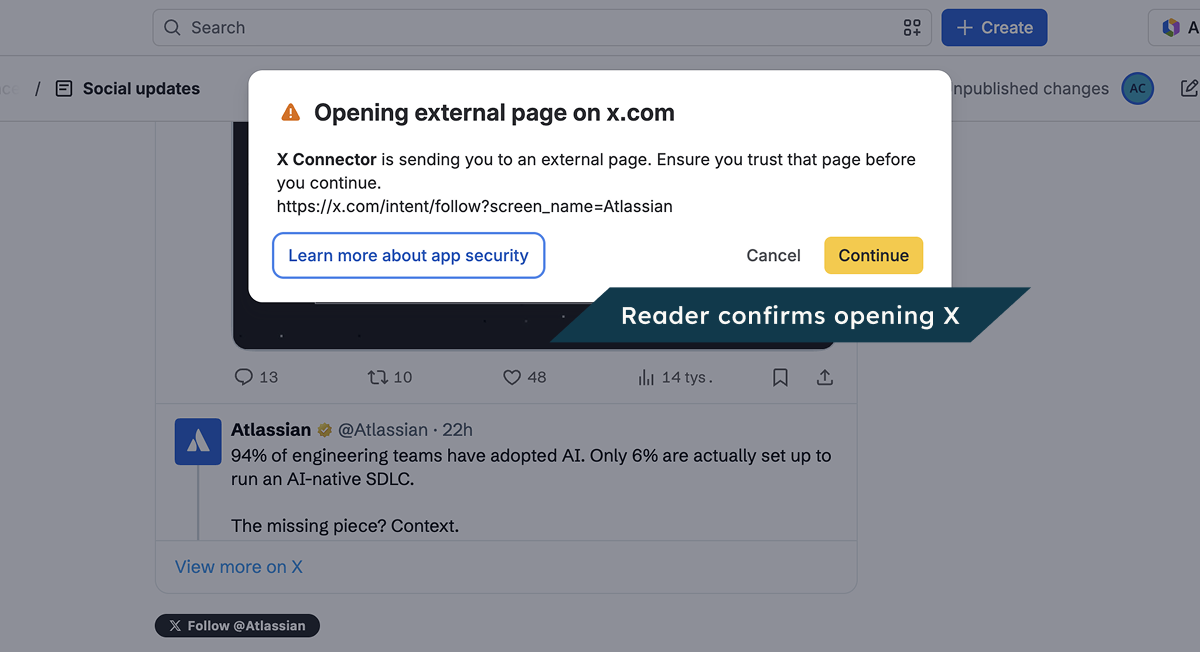
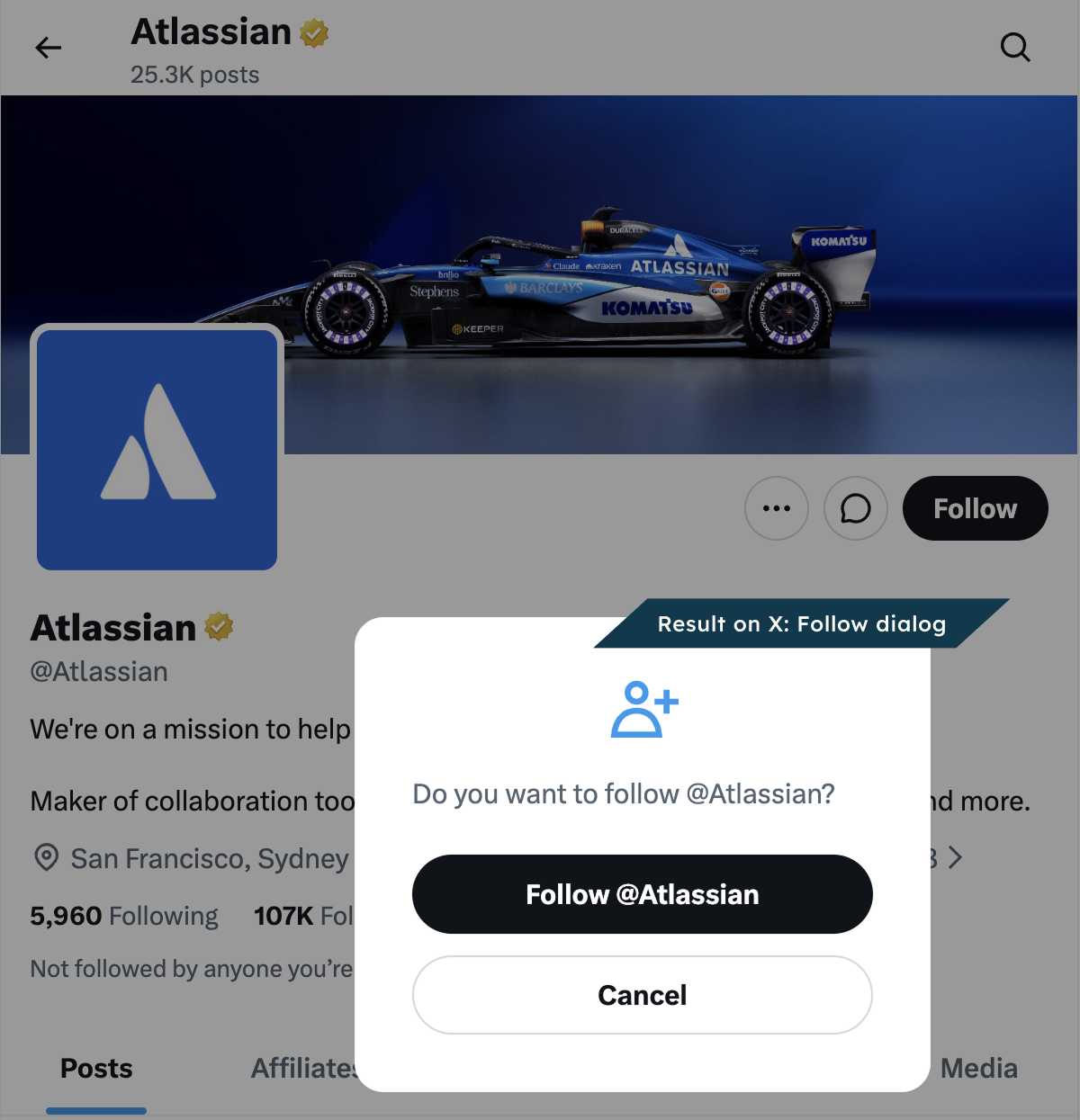
Add a Follow button for a team, partner or event account. When readers click it, X opens in a new tab. They follow from their own X account. They do not have to search for it.
Live example
On a partner page, put a Follow button by each account. Readers choose whom to follow on X.
Try it: this button is for @Atlassian. A click opens X in a new tab, where you can follow the account from your own X account.
Before you start
-
You can edit this page.
-
You have a public profile URL or @username.
-
You do not need an X API key.
Confluence asks readers before it opens X. They follow the account there, from their own account. X may ask them to sign in.
Add it to a page
-
Open the page’s insert menu. Choose Follow Button.
-
Enter a profile URL or @username in Item to share.
-
Choose your settings and check the preview.
-
Choose Insert.
-
On a regular page, publish or update it. Others can then see what you added.
To change it later, open its editor.
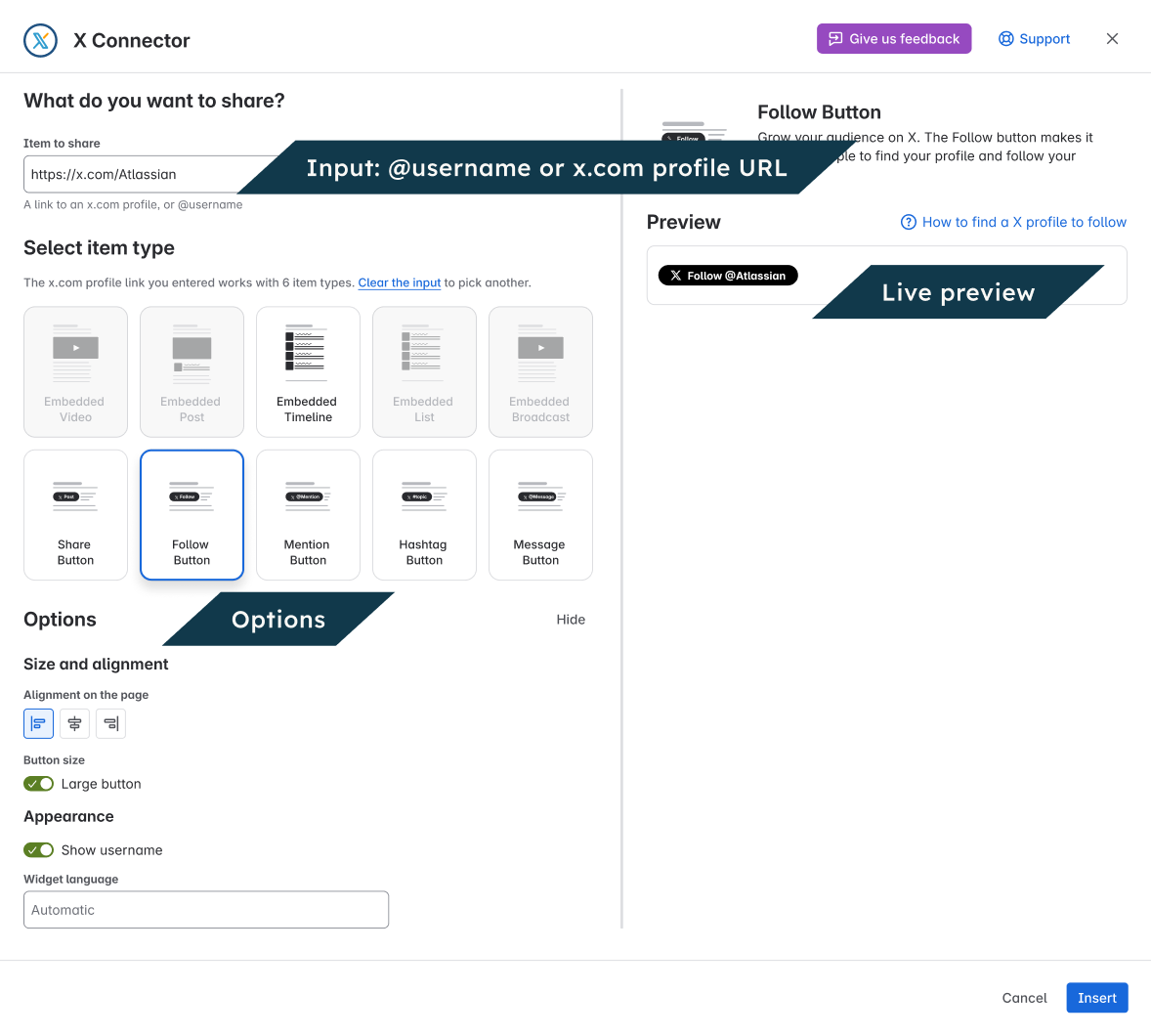
Settings
|
Setting |
What it does |
|---|---|
|
Show username |
Include or hide the username in the button label. |
|
Large button |
Use a larger button. |
|
Alignment on the page |
Place the button left, center or right. |
|
Widget language |
Change the button label language. Automatic uses the reader’s language setting. Starting text stays in the language you wrote it in. |
Check the result
View the page as a reader. Select the button and check that it opens the right action on X. Readers choose what to do on X.