
For: Confluence admins.
Set up your team’s X API key to show profile and List posts on your pages. Editors can also use the key to find an account’s ID for a Message button.
Your team pays X for API use. The app fee goes to Atlassian as a separate charge.
Before you start
You need:
-
Confluence admin access.
-
The X app's Bearer Token, which lets it read public X data. Keep it safe. X may show it only once.
-
X API credits for the reads you plan to make.
In this guide, “X API key” means the X app's Bearer Token. Copy it into X API Bearer token in Confluence. An API Key, Client Secret or user Access Token is a different value. Do not use those in this field.
Embedded Post, Video and Broadcast do not need this key. Share, Follow, Mention and Hashtag buttons work without it too. For a Message button, use the recipient’s ID made of digits to skip the key lookup.
Connect the app
-
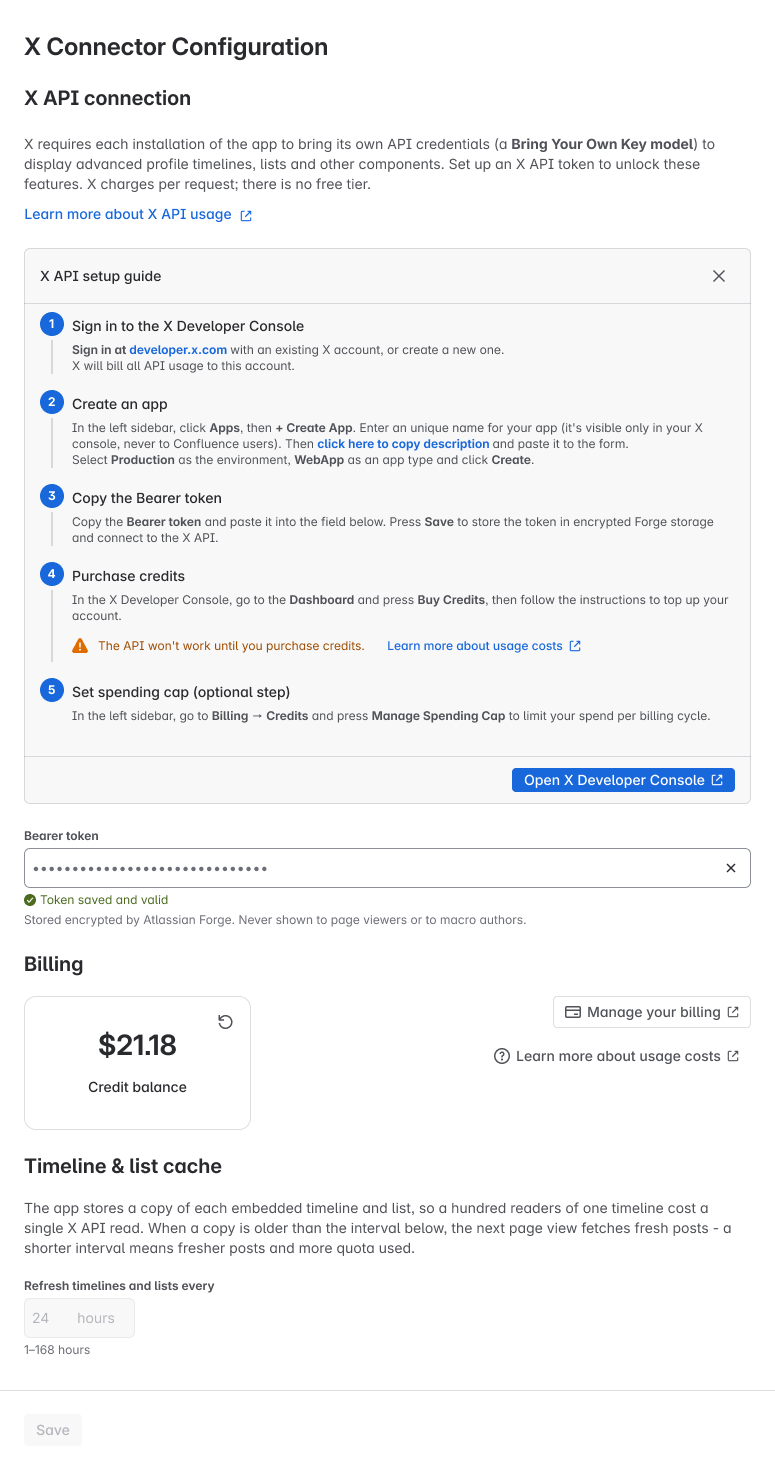
In Confluence, open Manage apps → X Connector for Confluence → Configure. You can also find the app under Settings → Apps.
-
Choose How to get a Bearer token to open the setup guide.
-
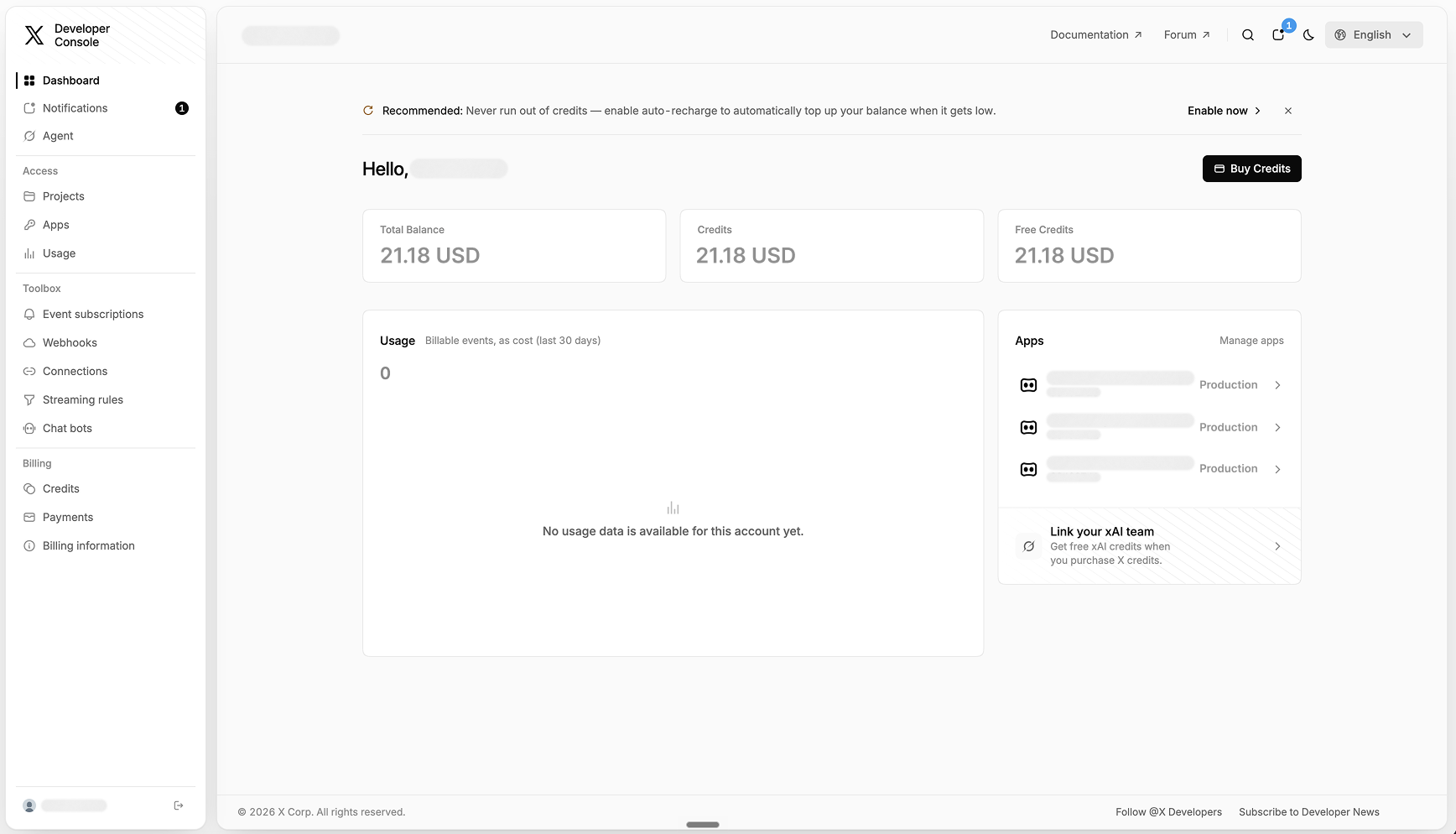
Sign in to the X Developer Console. Create an app to show public X content. If X asks where you will use it, choose Production.
-
Copy the X app's Bearer Token into X API Bearer token in Confluence. Choose Save.
-
Buy X API credits in the X Developer Console. See Usage costs for a starting budget.
-
If you want to limit spending, set a cap in the X Developer Console.
-
Go back to Confluence. Make the checks below.
Check the result
-
Check the saved key status. If the app could not check the token, test it before you use it.
-
Check Credit balance. If the balance is unknown, you may still have credits.
-
Ask an editor to preview a public profile or List timeline. Check that the posts also load when a reader views the page.
A saved token does not prove that X access and credits work. If setup fails, follow Fix a problem.
Set timeline freshness
Start with the default 24-hour cache. You can choose how long to keep saved posts, from 1 to 168 hours. A shorter time can show newer posts and use more credits.
Check or change the connection
-
If Configure cannot load your settings, choose Try again. It loads them again. Your saved settings stay as they are.
-
Credit balance shows the USD credits left when X returns a balance. If the check fails, you do not know how much is left. This page does not show how much you spent this month.
-
The app may let you save a token when its first check is unclear. Check its status again. Test a public timeline in the preview before you use the key on team pages.
-
To change the token, enter a new one and choose Save. To remove it, clear the field and choose Save. You cannot view or copy the saved token from Confluence. Forge encrypts it when it stores it.
-
If the key, credits or X access fail, the app may try X's public embed. That embed may show no posts.