
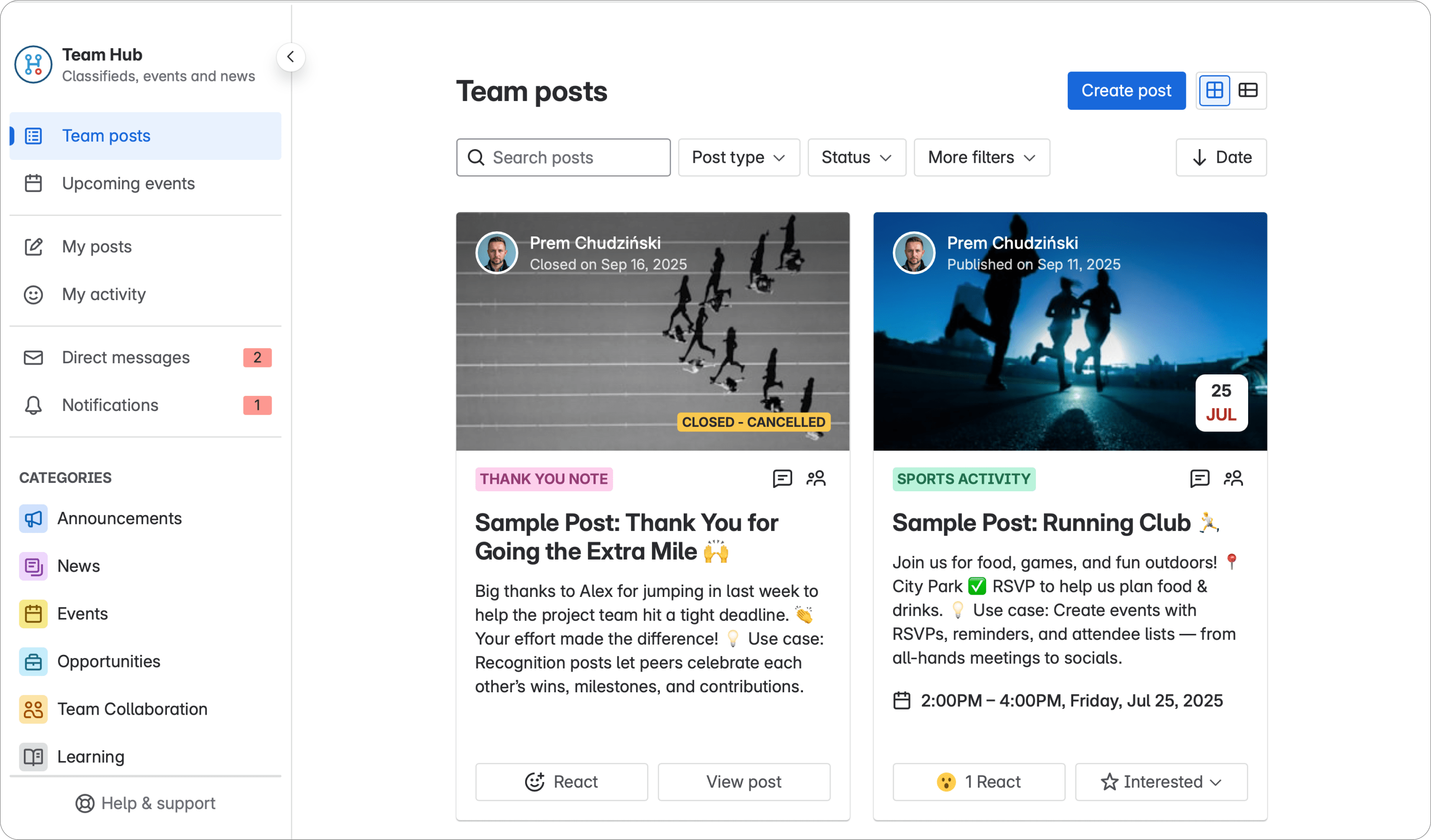
Closing a post shows readers that it has run its course, without removing it. The post stays on the Team posts board with a closed label, the reason you chose and the date it was closed. If it becomes relevant again, you can reopen it.
Close a post
-
Open the post's menu and choose Mark as closed. Post owners and admins can close a post.
-
In Reason for closing?, pick the reason that fits. A reason is required.
-
Confirm.
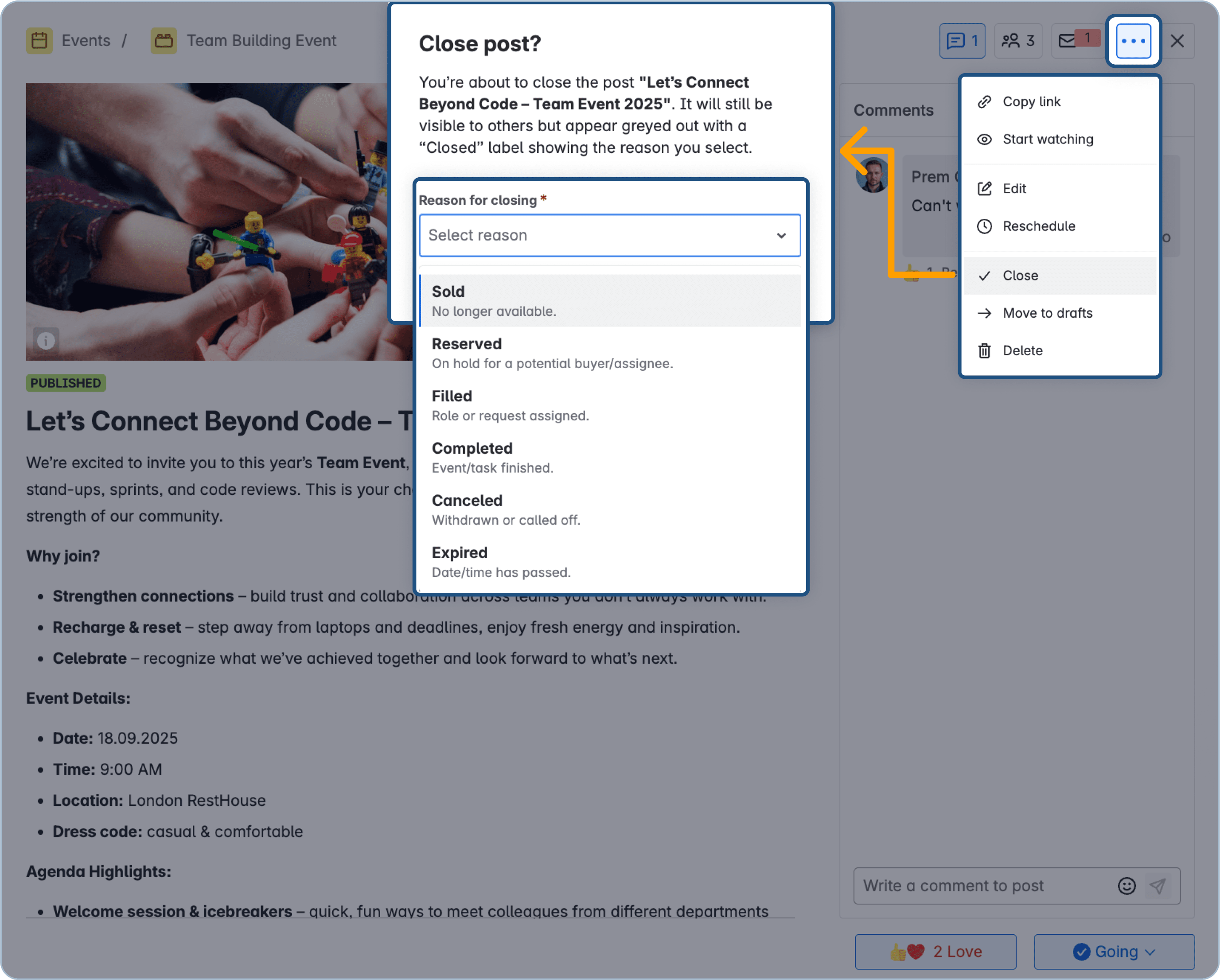
Closure reasons
|
Reason |
Use it when |
|---|---|
|
Sold |
The item has found a buyer. |
|
Reserved |
The item is on hold for someone. |
|
Filled |
The role or request has been assigned. |
|
Completed |
The event or task is finished. |
|
Canceled |
The event or offer has been called off. |
|
Expired |
The date or time in the post has passed. |
|
Superseded |
A newer post replaces this one. |
|
Duplicate |
Another post already covers the same thing. |
|
Unavailable |
The offer can't go ahead for a reason not listed here. |
|
Other |
None of the reasons above fits. |
What readers see
A closed post stays on the Team posts board. Its card shows a closed label, the closure reason and the date it was closed, so readers know why it ended instead of wondering whether it is still open.
Reopen a post
Post owners and admins can reopen a closed post: open its menu and choose Reopen. Team Hub opens the post editor, so you can update the content and set new publication dates. Then reopen the post right away or schedule it.
About the app
Team Hub for Confluence adds a noticeboard to a Confluence site: one board for news, events, jobs and classifieds, where every post has an end date. It installs from the Atlassian Marketplace.