
Jira prints the whole board. Filter the board first and print only the cards you need, or print just the ones nobody has printed yet.
Print selected & unprinted cards to save your time & paper.
On a board you can print cards using standard Jira “Print cards” functionality or any printing app.
In this standard scenario you’ll always print all cards from the board. That option is not usable.
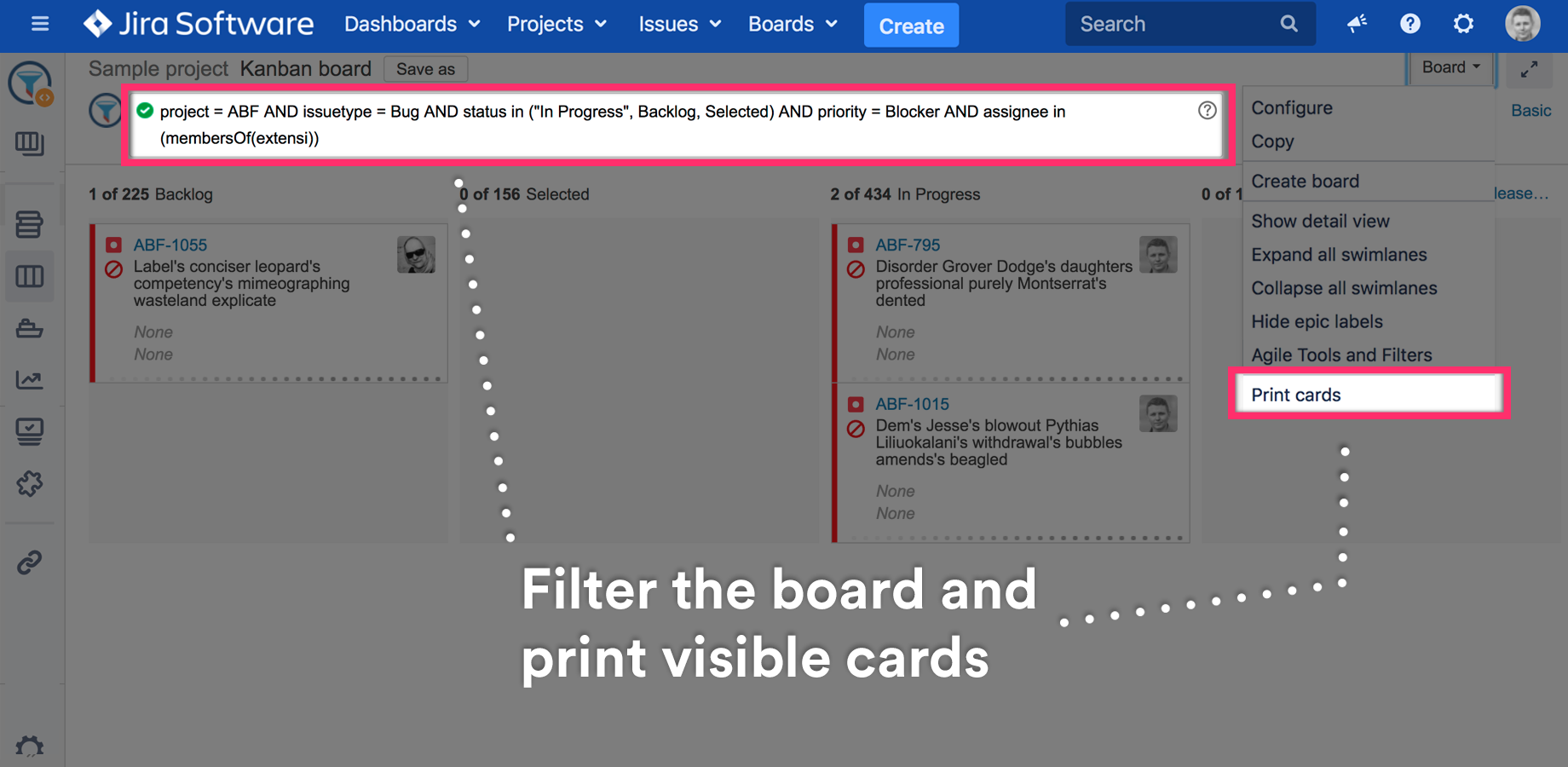
Filter & print selected cards only
Use the JQL Search Bar to find cards which you’d like to print.
Print all unprinted cards with Agile Cards in just 2 clicks
The app integrates with Agile Cards from SPARTEZ which marks cards which have already been printed.
When both apps are installed a new button “Unprinted issues” button will appear on the board.
Once selected the scrum master will be able to print all unprinted cards in just 2 clicks.
See the video how it works
Printing only the cards you filtered is part of Agile Tools and Filters for Jira, which keeps the board filter and the print selection in step.