
This feature is available from version 4.1
Overview
Multilevel WIP feature allow board administrators to build a true Kanban PULL system directly on any Jira Scrum or Kanban board.
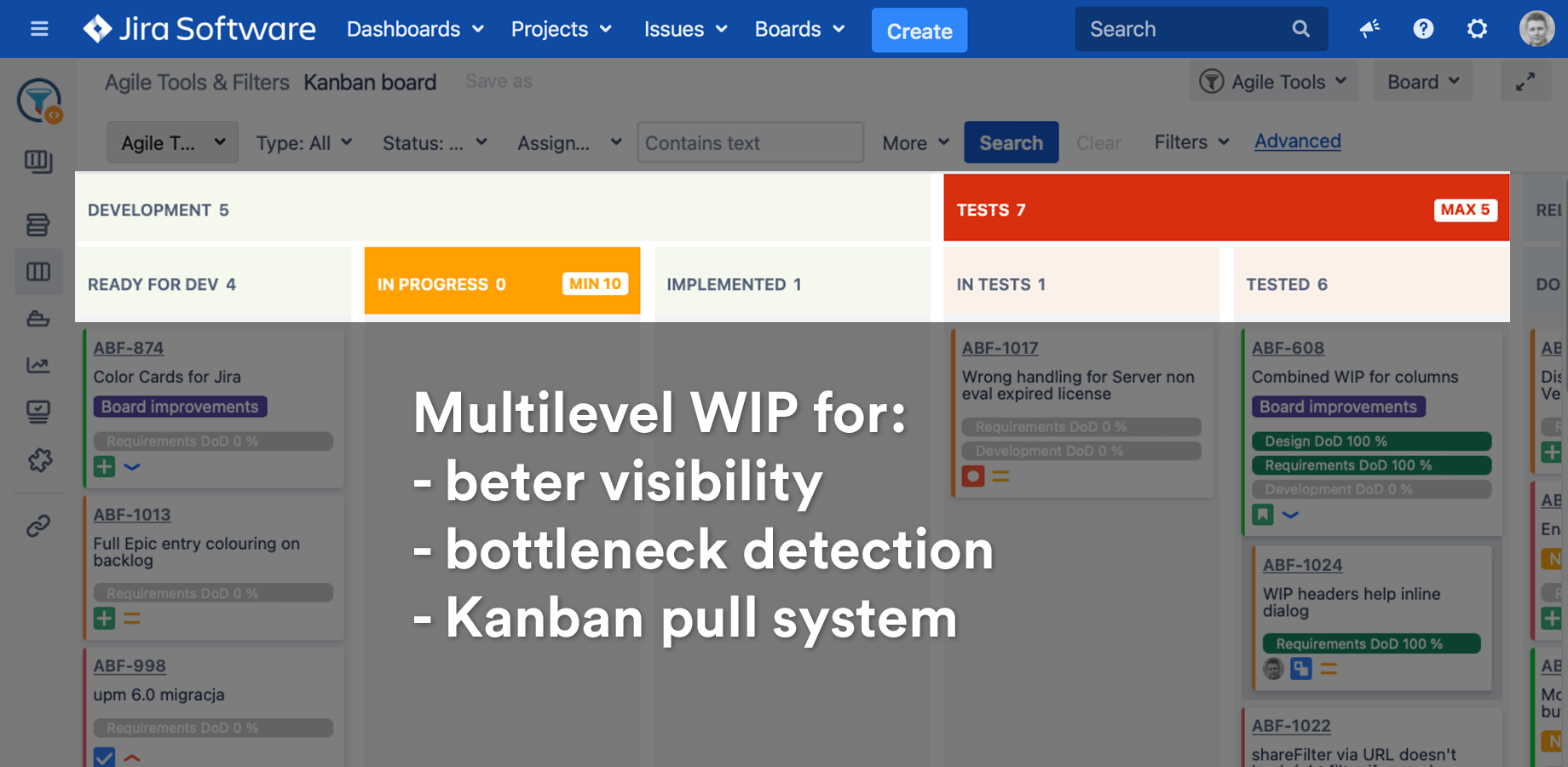
How Multilevel WIP limits and PULL system improves your workflow?
Expose blockers and bottlenecks with PULL system
Instead of pushing tasks forward, team members pull their tasks when they’re ready. That will increase visibility what is actually being worked on. Using multilevel WIP configuration split each major stage like development, tests or release into multiple steps:
-
In Progress
-
Done
That way you’ll be able to identify bottlenecks in your process and resources even without daily standups.
The advantages of the pull system are listed below,
-
Improves the efficiency of the workflow,
-
Reduces waste of resources
-
Manages and controls the workflow
-
Ensures that employees are occupied with one work
-
Reduces the waste in the processes
-
Reduces the waiting time in the processes
-
Enhance productivity
-
Work is done at a faster rate
-
The performance of the team is enhanced
-
The quality of the products is high and meets the customer requirements
-
Helps in managing the issues and problems that can be attended early in the cycle.
-
Helps to quickly adapt to the changes that may appear in the flow.
-
Enhance and optimizes the team capacity
-
Stabilizes the workflow by putting the WIP-Limits and pull system
Visualise and set limits at high level
Combine multiple statuses to represent project stages or teams and set WIP limits for each of them. For example development stage can utilise two teams and few different statuses. With WIP limits you’ll be able to tell if any of them is missing tasks or is overloaded.
Useful resources
-
How to build a Scrum PULL system
-
What is a WIP Limit
-
How to calculate WIP limits
Configuration
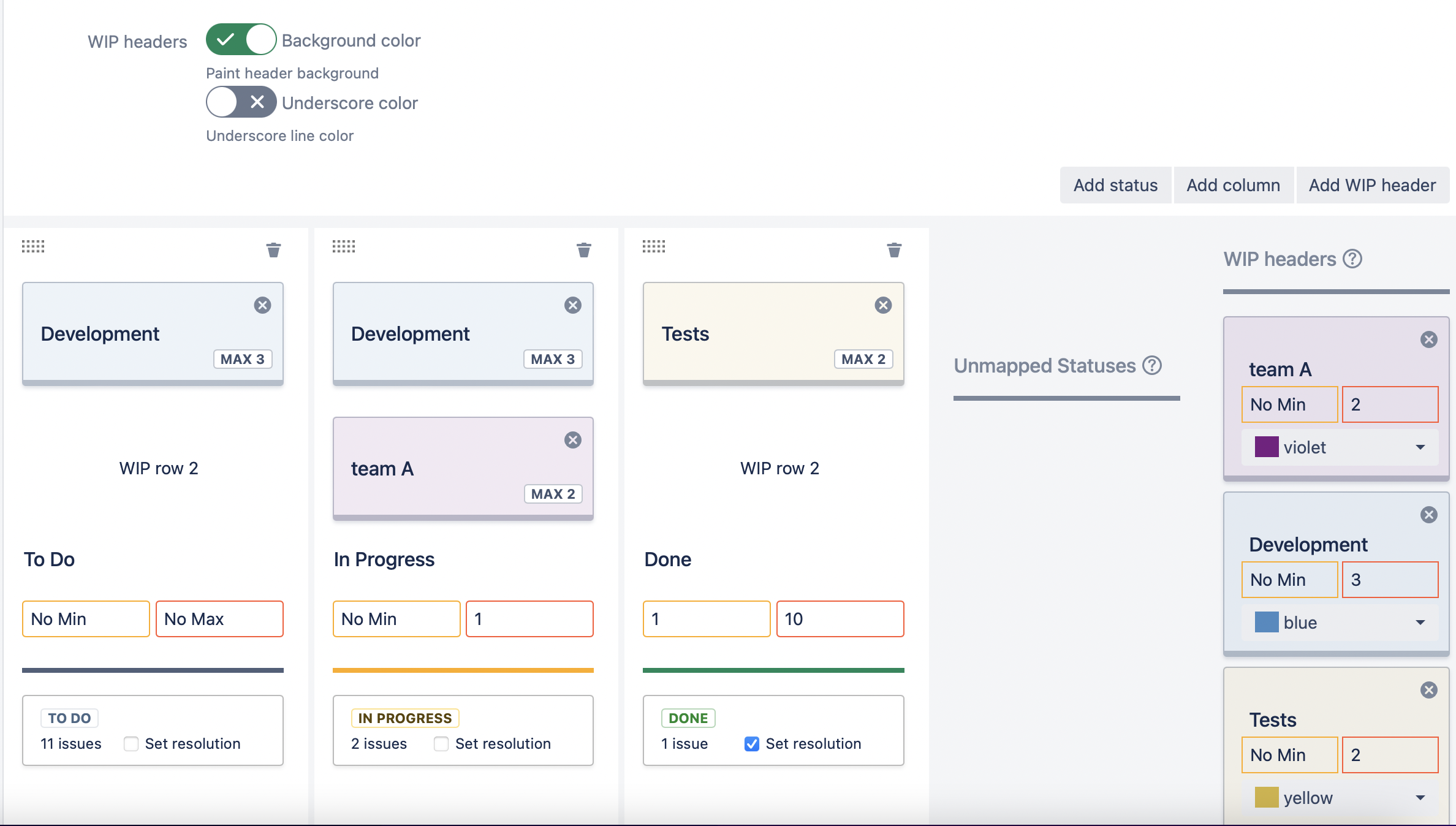
Multilevel WIP can be configured on each board on the Board->Columns tab
-
Use the Add WIP header button to create a new header
-
Drag & drop headers above existing statuses in your process to row 1 or row 2
Placing the same Multilevel WIP headers next to each other will create a combined WIP group on the board.
-
On the right side set WIP header limits
A combined WIP will calculate all tasks from the columns below.
-
To remove a header from a column use the X icon
Drag & drop will not remove a WIP header
-
Choose your boards Look & Feel by enabling background or underscore colour