
Create, manage or migrate filters between boards without limits
The Agile Tools & Filters comes with an advanced filter manager.
Key features
-
Create and manage filters including Quick Filters
-
Migrate filters between types, board or Jira instances
-
Edit multiple filters of any kind in a text editor using JSON
-
Import your Favourite Jira filters as private, board or global filters
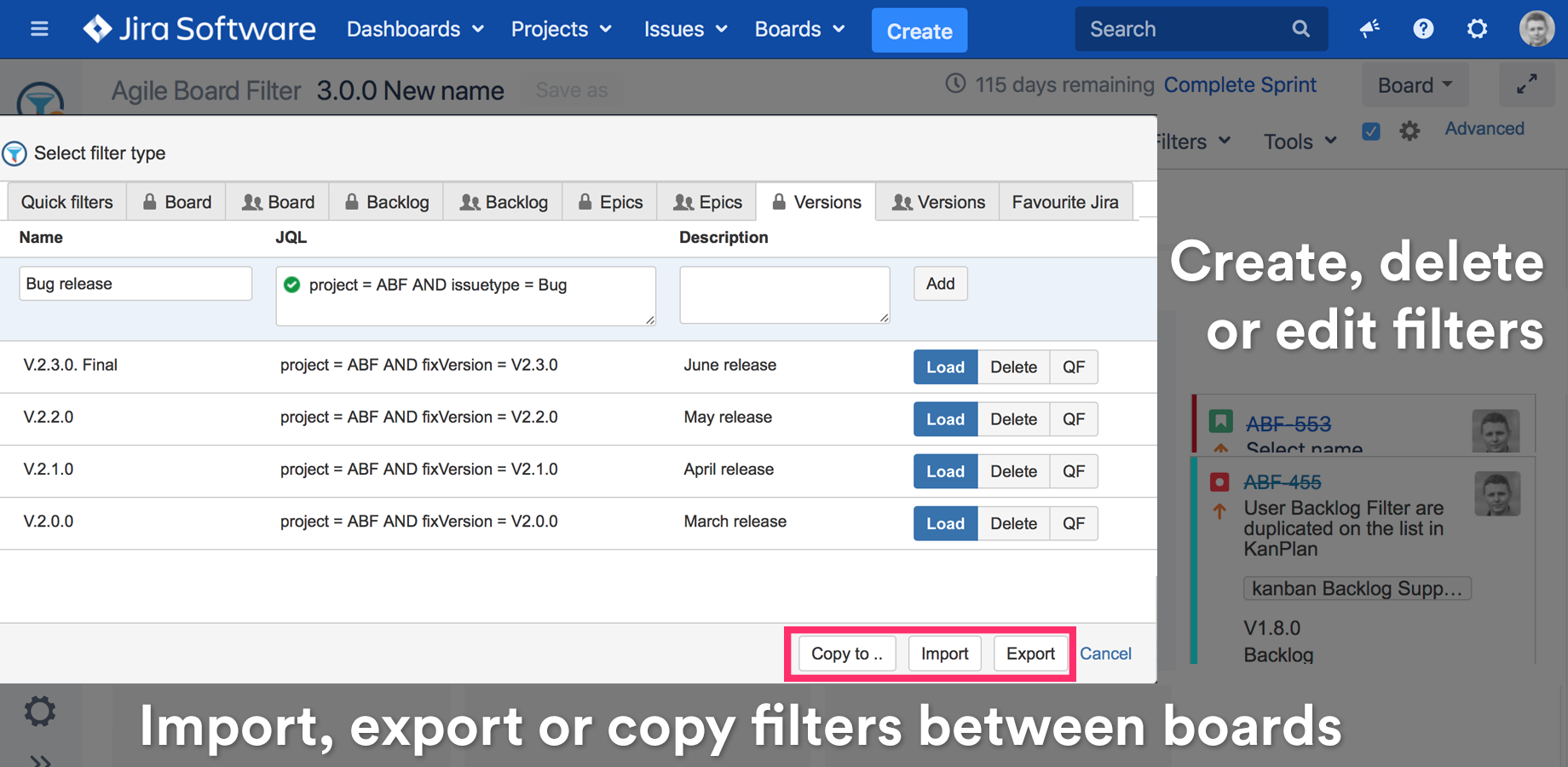
Supported filter types
The app supports Quick Filters, board, backlog, epics, versions filters explained in details in Plan you work using user, team or global filters . Additionally it supports Jira Favourite Filters.
Filter Manager tabs use icons for different filter types
User (private)

Board (team)

Global (all boards)

Supported operations
-
Create, delete, update
-
Load to load the filter to the SearchBar or JQL filter on Epic and Version panel
-
Re-order by dragging a filter up or down
-
Create a Quick filter from an existing filter using the QF button
-
Copy to.., import, export to copy filters between types, boards or Jira instances using JSON
Management rights
|
|
User |
Board administrator |
Jira administrator |
|---|---|---|---|
|
Quick Filters |

Can only load or import to his private filters |

|
|
|
User (private) filters
|
|
Only his private filters |
Only his private filters |
|
Board (team) filters
|
|
|
|
|
Global (all boards) filters
|
|
|
|
|
Favourite Jira |
Can load or import to his private filters |
Can load or import to his private or board filters |
Can load or import to his private, board or global filters |
Legend
|
|
All operations allowed |
|
|
Not allowed at all or limited functionality |
Migrating filters between types or boards using import, export and copy to functionality.
Jira or board administrator can finally manage all filters in a simple way.
For example you can create a set of Quick Filters using a text editor and import them into any board using JSON.
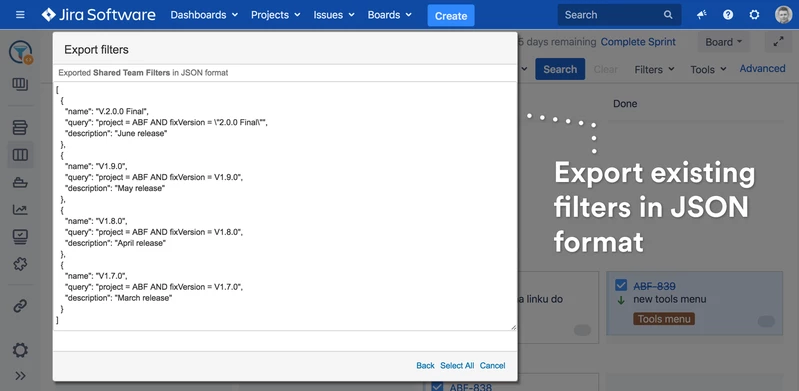
Exporting to JSON format
Any kind of filters can be exported into JSON format.
Afterwards filters can be:
-
imported into a different board or Jira instance using the import functionality
-
copied as different type using the Copy to functionality
Importing filters to a new board
Copy the exported JSON, edit it if needed and choose the filter type.
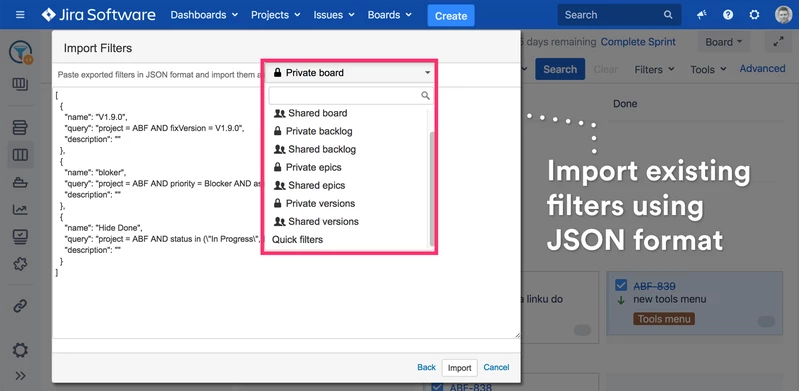
Permissions to import or create filters are described in the table above under “Management rights” section
Copying filters to a new type
-
In the Filter Manager select a tab with the type of filters you’d like to copy
-
Press the Copy to.. button
-
From the dropdown select a new filter type
-
Edit the JSON if needed
-
Click import.
Import and Copy to errors
In some cases the import may be unsuccessful caused by:
-
Invalid format of the copied JSON
-
Invalid JQL in the JSON - that may happen if Jira fields, projects, etc. will be deleted or renamed